
Step 1: GS1 Digital Link Generator
1.After logging into your account, click the “GS1 Digital Link” menu on the dashboard to enter the digital link management interface.
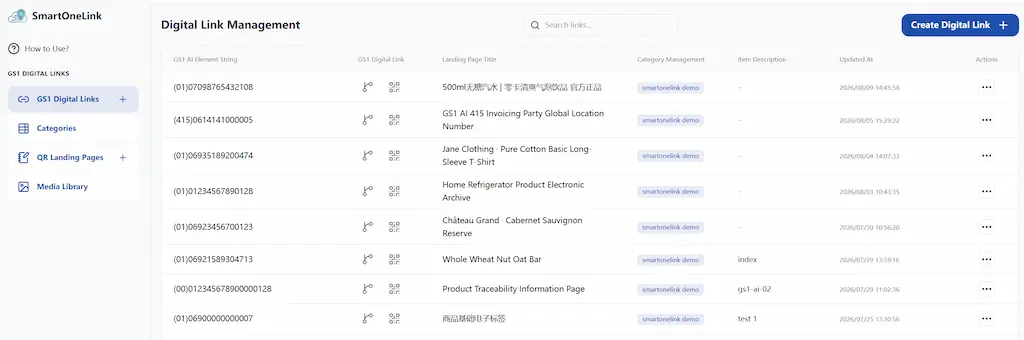
2.Click the “Create Digital Link” button.
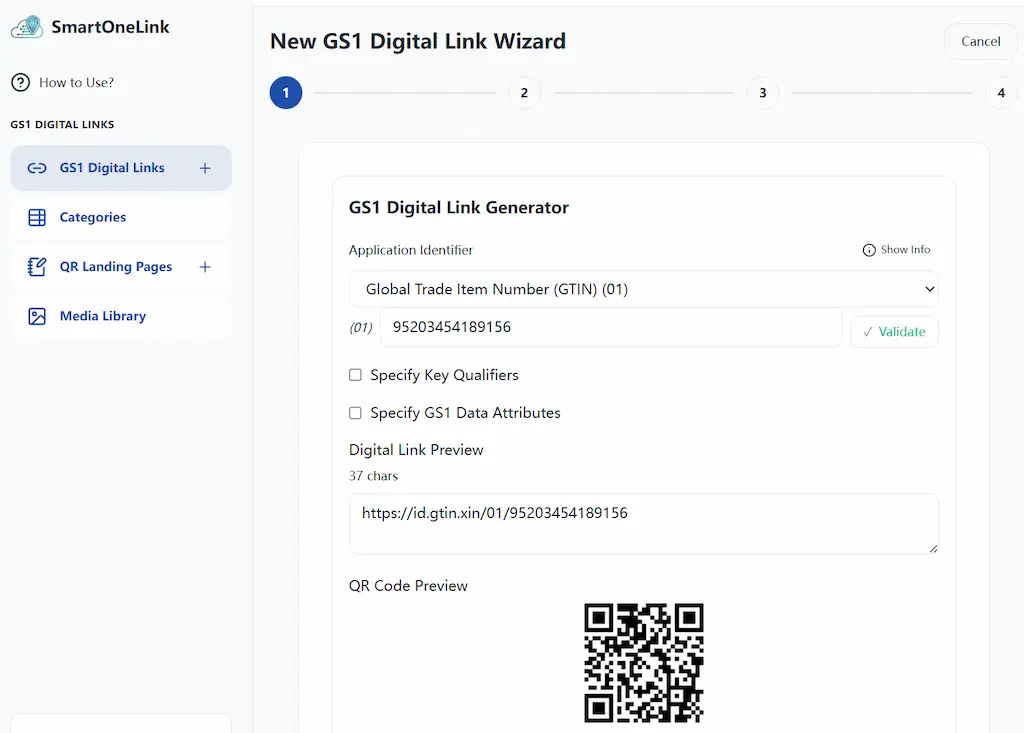
3.Select the AI identifier you need. In the example, we choose the most commonly used one: Global Trade Item Number (GTIN). Click “Show Description” to view the description information for the selected AI identifier.
4.Enter your product’s GTIN value, then click “Continue”. Click the “Validate” button to check if the entered data format and check digit are correct.
5.If you need to enter a “Key Qualifier” or “GS1 Data Attribute”, you can check the corresponding box and enter the value.
6.After completing the entry, click “Next”.
Step 2: Select Category
Select a category for this digital link to facilitate management and searching.
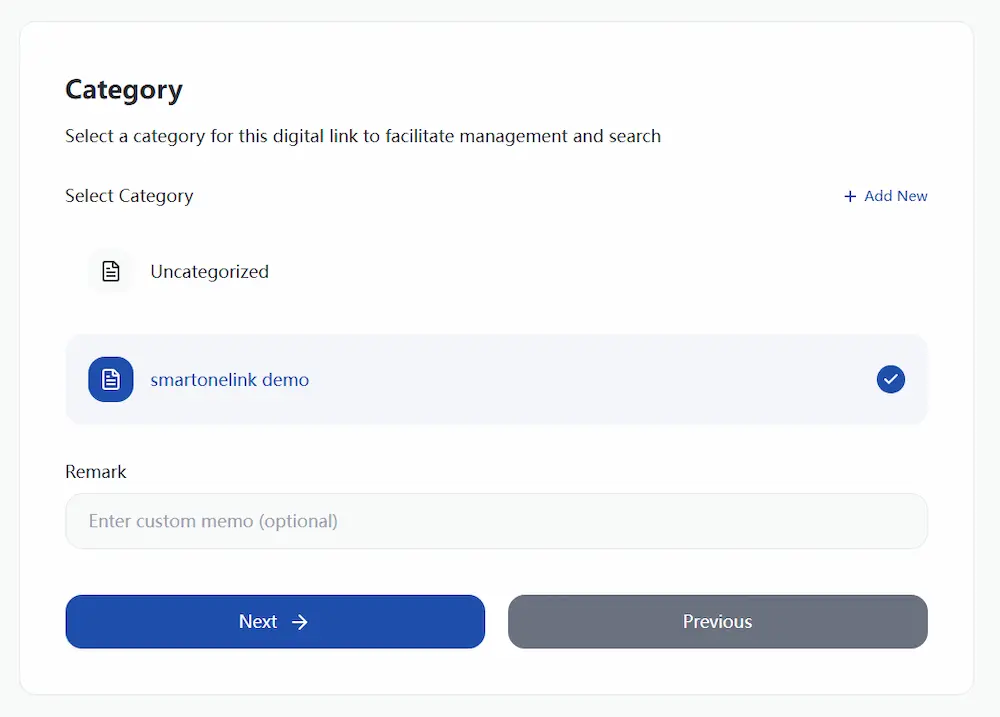
Here you can create a category, select a category, and enter remarks.
Step 3: Select the QR Code Content Link Type
Select the redirection behavior after scanning this QR code, which determines what the user sees.
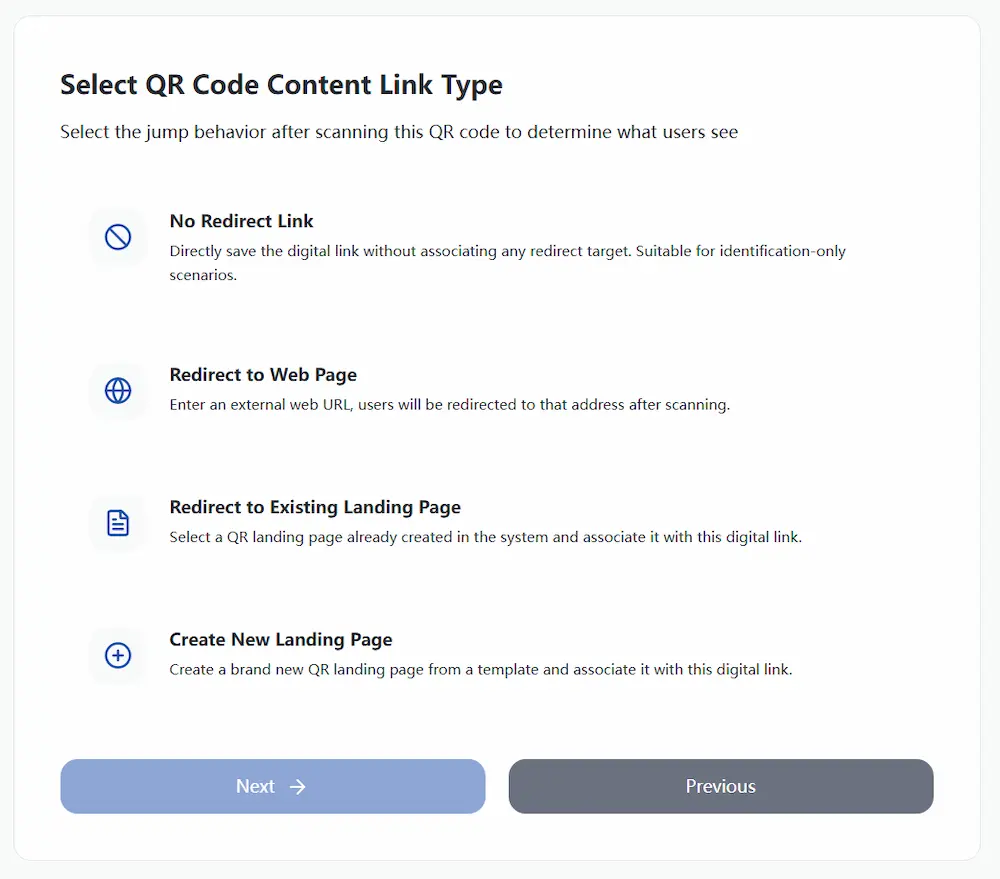
Choose the corresponding option based on your needs:
No Redirect Link
Save the digital link directly without associating it with any redirection target. Suitable for scenarios that only require identification.
Select this option and click “Next” to save it.
Redirect to a Webpage
Enter an external webpage URL. After scanning, it will directly redirect to that address.
Select this option, click “Next”, you will need to enter a link address, then save to complete.
Redirect to an Existing Landing Page
Select an existing QR code landing page already created in the system and associate it with this digital link.
Select this option, click “Next”, you can choose a landing page that has already been created. If you don’t have one, please select the next option.
Create a New Landing Page
Create a brand new QR code landing page from a template and associate it with this digital link.
Select this option, click “Next” to enter the “Create QR Code Landing Page” process.